Thoughts on Clustering: Part 2 - Serving Static Content
I spent a while thinking about how to continue the series on clusters. In the previous article <a href="http://www.tech-notes.net/notes-about-clusters/" title="Thoughts on Clustering. Part 1" target="_blank">Thoughts on Clustering. Part 1</a> I covered splitting the database and the web server across different nodes/heads. For the second article I wanted to cover adding more web servers, then realized the blog doesn’t have a note about all the load balancing options I know of. Then I thought about covering adding a database server to the cluster, then realized the blog doesn’t have a note about mysql replication either.
What’s left? So-called application or storage servers. There we go 🙂 That’s enough to cover adding one more layer.
Based on the previous article, the web server we already have handles the following tasks:
- Serving dynamically generated content;
- Serving static objects, like images, css/styles, js/scripts, fonts and other files.
- Optionally the web server can also handle caching with memcached, APC or eAccelerator.
- Every self-respecting server admin wants Varnish running too, so it can also live on the remaining web server.
As you probably noticed, the server’s main job is item #1. If load on the existing two-server cluster grows, don’t rush to spin up another web server. It makes (sound) sense to first free up the existing server from secondary tasks. And again, serving static files isn’t demanding, so you can use the weakest server your hosting provider offers for it.
The overall picture will look like this:
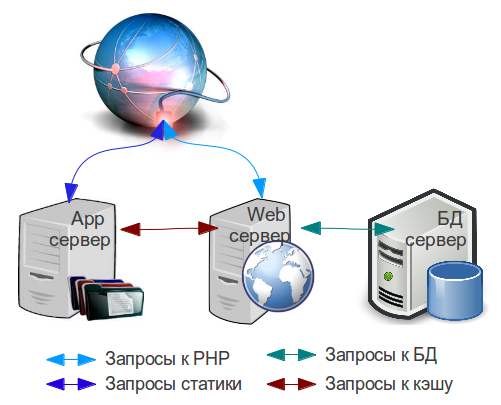
To serve static content, you can build NginX from source, disabling all modules. Keep only the gzip module. The configure line will look like this:
./configure -prefix=/etc/nginx -user=nginx -group=nginx -with-http_gzip_static_module
Once NginX is installed, you need to somehow get the static content onto the new server. There are three options:
- Sync content from the Web server to the App server (lsync, rsync). Not the preferred method, since it doubles the storage you need for files, even if it’s spread across two servers.
- Set up an NFS server on the Web server and mount the site folder on the App server.
- Move all the content to the App server, set up an NFS server on it and mount the whole site folder on the Web server.
I’d recommend picking one of the last two options. It all depends on the amount of files.
If the available disk space on the App server can fit all your site’s files, then go with the third option. That’s the preferred approach if you’re planning to add more servers to the cluster down the line.
Again, optionally, you can copy the whole site’s content to the App server and mount the entire folder on the Web server via NFS.
The overall diagram changed a bit. New elements were added. The different colored arrows show different types of requests.
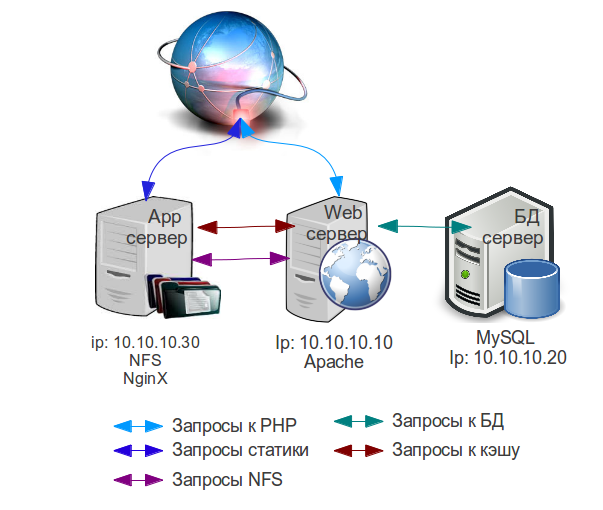
Now all that’s left is splitting requests between the two servers. Do you need a load balancer? you might ask. No, you don't., I’ll answer. To send static requests to the App server, one rewrite rule in the .htaccess file on the Web server is enough.
I’ll go over the case where the Web server runs Apache. For NginX these rules can be converted.
First, create a DNS A record, call it static.yourwebsite.com and point it at the App server’s IP.
Then add rules like these to the rewrite module in the .htaccess file in the site’s root folder:
RewriteEngine On
RewriteCond %{HTTP_HOST} ^www.yourwebsite.com$ [NC]
RewriteRule .*.(flv|gif|jpg|jpeg|png|ico|swf|js|css|pdf|woff|other_file_types)$ http://static.yourwebsite.com/$1 [R=301,L]
Replace other_file_types with whatever extensions you’re missing, and remove that phrase itself from the rule.
This is a hacky approach overall, but it won’t add extra load on the Web server. Of course it’s better to rewrite all the static object URLs in your site’s database. With Magento, you can just change the static content server address in the admin panel.
There’s no point caching static content, so don’t bother setting up Varnish on the App server for static files. I’ll cover a separate approach for that at some point.
You can also install Memcached on the app server. In the config file (/etc/memcached.conf) change the socket ip from 127.0.0.1 to an ip reachable over the network (10.10.10.30 in the diagrams) and allow incoming connections on port 11211 for the server subnet:
iptables -I INPUT -p tcp -s 10.10.10.0/24 -dport 11211 -j ACCEPT
Don’t forget to reconfigure your site to use memcached on the app server.
That’s about it. Now the site runs on three servers, each handling its own assigned tasks.
Next article:
Thoughts on Clustering: Part 3 — Varnish Cache