Creating a child theme in WordPress
Inspired by an article on Habr, I decided to write my own take on creating a child theme in WordPress, since the Habr one has way too much text and explanation. I don’t consider myself a WordPress programming pro, so I’ll try to keep this short and to the point.
If you’re looking at WordPress for the second time and you’ve stepped on the theme-update rake for the third time - keep reading.
So, why do you need child themes at all? I’ve partly answered that already. Every now and then holes (security-wise) get found in WordPress core, plugins and themes. Decent people who develop themes, plugins and the CMS itself, in turn, ship updates. All your customizations vanish the moment you install those updates. It gets especially bad with a heavily modified theme. Really bad if you don’t have a backup.
To not lose all your modifications - don’t make them in the parent theme’s files.
I managed to dig up an old version of the Twenty Twelve theme in WordPress’s stash. I’ll use it for this example.
- Create the child theme’s folder:
mkdir /wp-content/themes/twentytwelve-child
- A theme needs two files to work:
- style.css
- functions.php
Let’s create them:
touch /wp-content/themes/twentytwelve-child/style.css
touch /wp-content/themes/twentytwelve-child/fnctions.php
- The theme’s name is set in
style.css. Minimal code required for style.css:
/*
Theme Name: Twenty Twelve Child
Template: twentytwelve
Author: the WordPress team
Version: 1.0
Text Domain: twentytwelve-child
*/

@import url("../twentytwelve/style.css")
The last line pulls in the styles from the parent theme.
At this point the theme shows up in the theme list in the WordPress admin and looks like this:
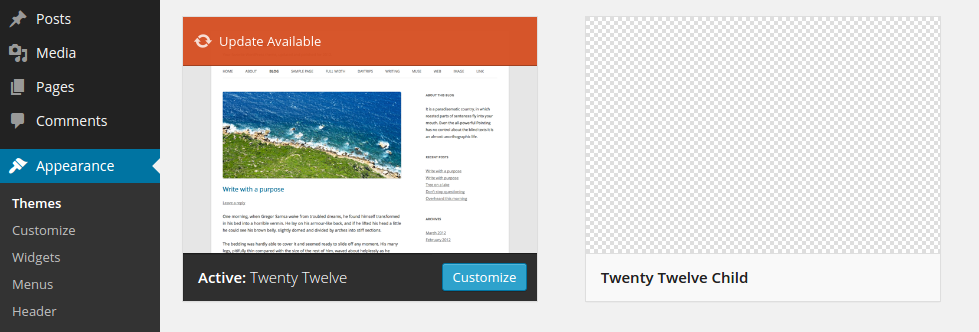
Copy screenshot.png from the parent theme so an image shows up. Feel free to edit it if you want:
cp /wp-content/themes/twentytwelve/screenshot.png /wp-content/themes/twentytwelve-child/
Now the theme list looks like this:
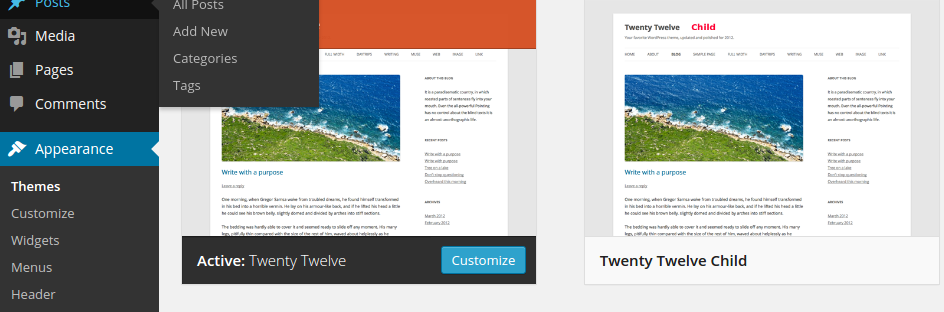
After that you can activate the theme and it’ll actually work.
What’s left is to drop all your modified files into the child theme’s folder. WordPress prioritizes scripts/files from the child theme folder over the parent theme’s files/scripts. If a file isn’t found in the child theme folder - it falls back to the parent.
The default theme looks like this:
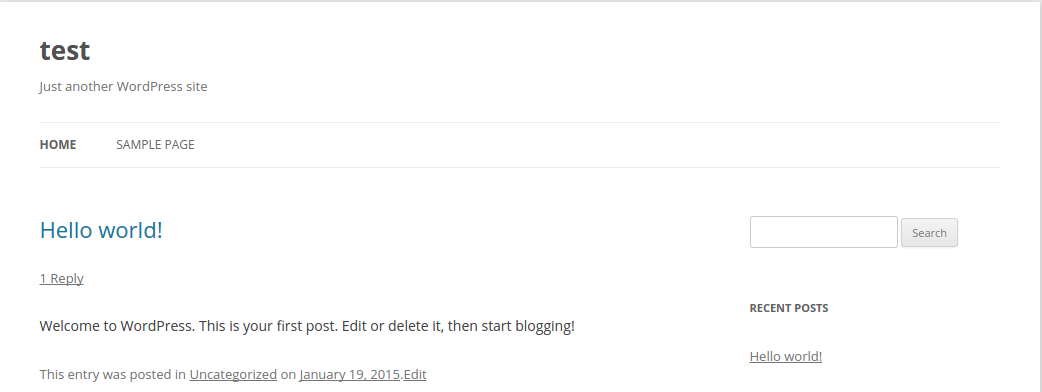
Let’s modify it a bit to show how this works. I copied header.php from the parent theme, changed the menu display (above the title) and removed the blog description. The original header.php stayed untouched. Here’s the result:
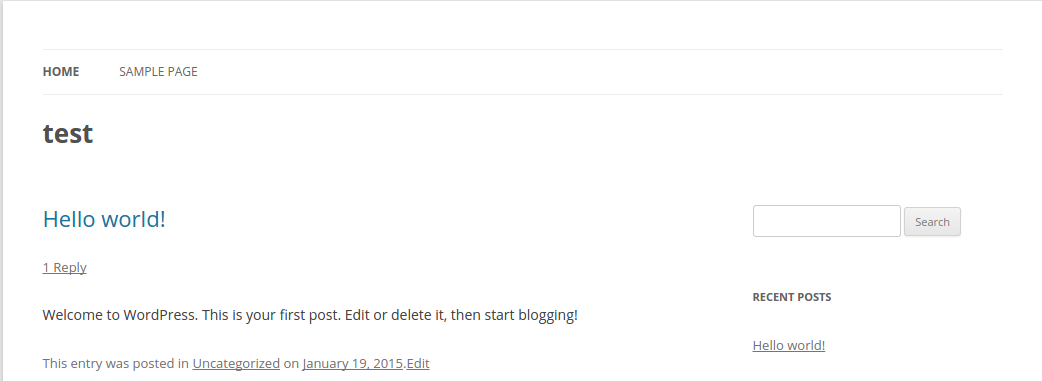
As you can see, header.php from the child theme folder took effect.
The catch is with stylesheets. If you declare a new display style, say the text zone width, in the child theme’s style.css file - it won’t work.
To make it work you need a separate stylesheet file and enqueue it:
touch /wp-content/themes/twentytwelve-child/custom.css
Add this code into it:
.site {
  margin: 0 auto;
  max-width: 90%;
  overflow: hidden;
}
Unfortunately the @import url directive only works once per style.css file, so you can’t hook up a second stylesheet that way.
In WordPress stylesheets get enqueued via the wp_enqueue_style() function in functions.php.
Let’s create our first custom function in the child theme’s functions.php, which returns the child theme’s folder or uri:
function get_child_template_directory_uri() {
  return dirname( get_bloginfo('stylesheet_url') );
}
After that we can freely use get_child_template_directory_uri() in other custom functions.
Now let’s enqueue custom.css:
function child_styles() {
  wp_enqueue_style( 'twentytwelve-child-style', get_child_template_directory_uri() . '/custom.css' );
}
add_action( 'wp_enqueue_scripts', 'child_styles',12);
You can copy this line and add more css files if needed. All of it will work.
I think it’s obvious why the functions.php file has to start with <?php and end with ?>
By the way, the number in add_action() sets the priority. 12 is a pretty high one, meaning the styles enqueued through it will take precedence over the default ones from the parent theme.
Same way as with styles, you can add other functions without any risk of losing them on an update.
I won’t ramble on further. Drop all the files you’ve edited into the folder, enqueue whatever css files you need, and update as much as you want.