Синхронизация файлов между двумя Windows серверами
Обычно для синхронизации файлов между Windows серверами люди используют robocopy. В принцыпе robocopy отлично с этой задачей справляется, но только до тех пор пока Ваши сервера находсятся в одной подсети.
Команда выглядит следующим образом:
robocopy \\IP_сервера\Имя_Папки Имя_диска:\\Путь\к\папке /MIR /Z /XA:H /W:5
Или наоборот:
robocopy Имя_диска:\\Путь\к\папке \\IP_сервера\Имя_Папки /MIR /Z /XA:H /W:5
Небольшое пояснение по используемым опциям:
- /MIR - (сокращенно от mirror) означает, что robocopy должно в точности отобразить исходную папку на новом сервере. Означает, что файлы на новом сервере могут быть удалены, если они отсутствуют на исходящем сервере.
- /Z - указывает утилите, что в случает облома связи файлы нужно продолжить копировать, а не начинать заново.
- /XA:H - заставляет утилиту игнорировать системные файлы. Для винды, как правило, системные файлы являются очень нужными и важными, поэтому ОС их любит лочить для чтения. Очень мало толку от таких файлов на новом сервере. Лучше их исключить.
- /W:5 - казывает задержку в секундах между попытками счтать файл заново в случае неудачи.
Это очень хорошо работает, если Ваши сервера находтся в одном датацентре и могу достучаться друг к другу на прямую.
Если же Ваши сервера находтся в разных сетях или соединение между ними ограничено фаерволом, то подмонтировать расшареные папки Вы не сможете (или сможете, но с геморроем).
В таком случае на помощь приходит ‘BitTorrent Sync’, который скачать можно по следующей ссылке:
http://filehippo.com/download_bittorrent_sync/
Альтернативой может стать ссылка на мой сервер.
Устанавливается он за 2 секунды. Интерфейс довольно понятный. Работает быстро. Нужно на исходном сервере указать какую папку вы хотите расшарить и добавить ее в такой же клиент на новом сервере.
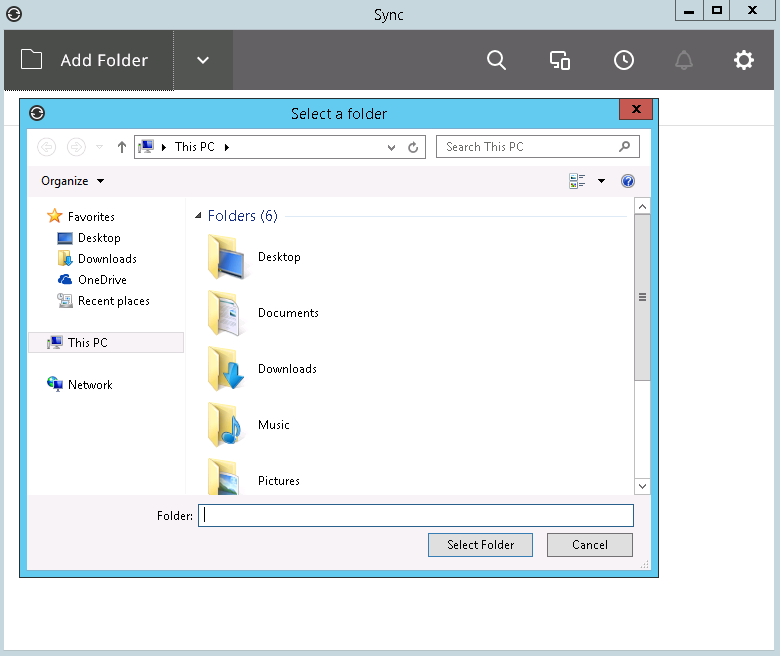
После добавления папки в клиент на новом сервере, нужно вернуться на исходящий сервер и подтвердить доступ к ней.
Все.
Список использованой литературы: