Как я проверял Moodle на прочность
Появилась задачка проверить сколько одновременных пользователей выдержит сайт на базе moodle.
Вернее даже так Выдержит ли Moodle 1000 одновременных пользовательских сессий
Тема про нагрузочное тестирование довольно популярна в современном мире, поскольку каждый хозяин интернет ресурса желает знать предел его возможностей, и, по возможности, расширить этот предел.
Сценарий поведения был такой:
- Заходим на сайт.
- Логинимся.
- Переходим на страницу c опросом/экзаменационным билетом (quiz)
- Жмем кнопку
Attempt quiz - Заполняем форму и сабмитим ее.
- Подтверждаем свои ответы.
В качестве генератора трафика использовался продукт LoadStorm.
По ходу выполнения сценария нужно учитывать следующие факты:
- Пользователь/студент не может одновременно заполнять один и тот же quiz несколько раз. Поэтому нужно сгенерировать нужное количество пользователей и импортировать его в moodle. В LoadStorm этих же пользователей нужно тоже добавить. Вот только файлы будут отличаться.
- Кнопка в четвертом пункте не может быть вызвана кликом на странице. Это функция отправки формы со значением
Attempt quiz now. Если пользователь/студент уже попробовал пройти quiz, значение функции меняется наre-attempt quiz.
Для начала сгенерируем csv файл для импорта в базу пользователей moodle. Можно сделать с помощью табличного процессора типа Exel,Libre Office Calc или создать таблицу в GoogleDrive. Вот только у меня не получилось сгенерировать уникальные email адреса по типу [email protected], [email protected] … [email protected].
Поэтому я воспользовался маленьким циклом в bash.
Для начала создадим файл и внесем в него обязательные поля:
echo `username,password,firstname,lastname,email` >> mdl_users.csv
Затем заполним этот файл нужной информацией:
i=0 && while [ $i -le 1000 ]; do echo `user$i,password$i,user$i,user$i,user$i@tempmail.com` >> mdl_users.csv; let `i = $i + 1`; done
Не забудьте сделать резервную копию базы данных moodle
Теперь импортируем пользователей в moodle. Для этого заходим на сайт используя учетную запись администратора. Дальше, как показано на скриншоте, разворачиваем Site administration -> Users -> Accounts
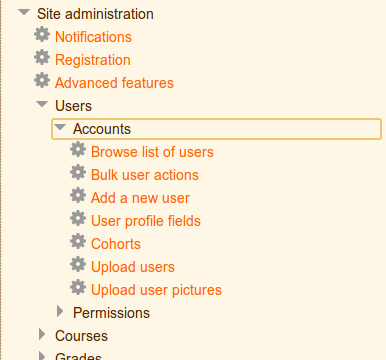
Выбираем пункт Upload Users и получаем вот такую форму. Можно просто перетащить csv файл в нужную область:
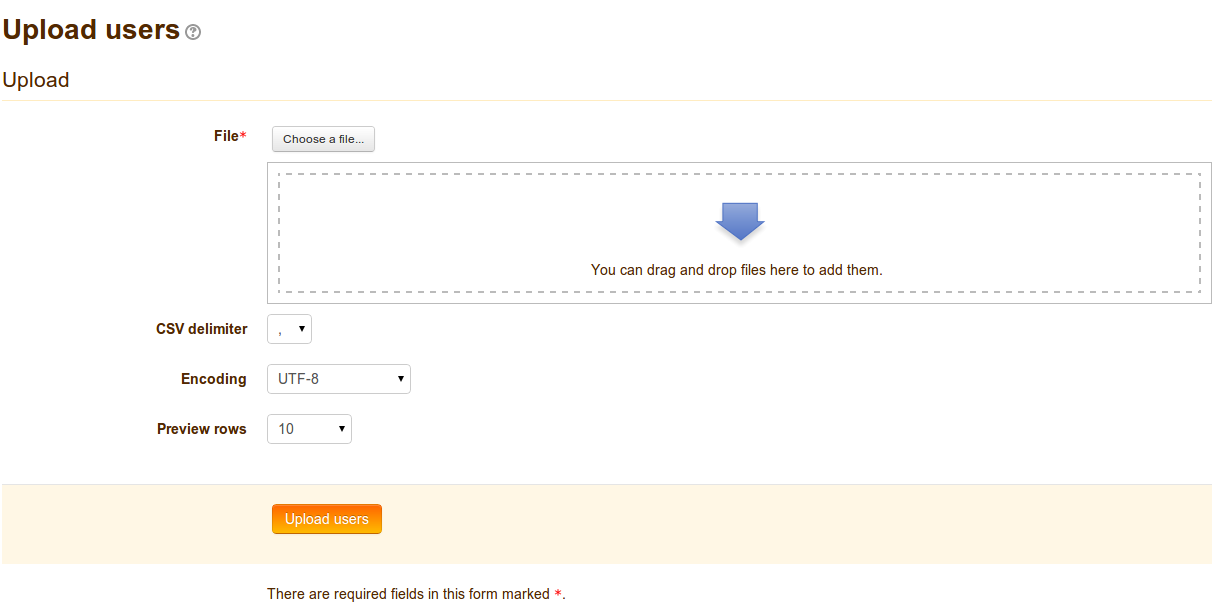
Дальше все логически понятно. Не буду заострять на этом внимание.
Также логически понятно, почему пользователи не имеют доступа к нужному опроснику (quiz’у) - их попросту нету в списке разрешенных пользователей.
Для этого в секции administration переходим в Cource administration -> Users и жмем Enrollment methods:
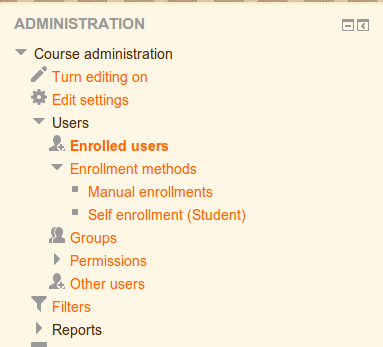
К сожалению я не нашел как это проделать с помощью mysql запроса. Поэтому 1000 пользователей руками добавлял в курс. В столбце под словом Edit есть маленький символ человека со знаком + (плюс). Его и нажимаем:
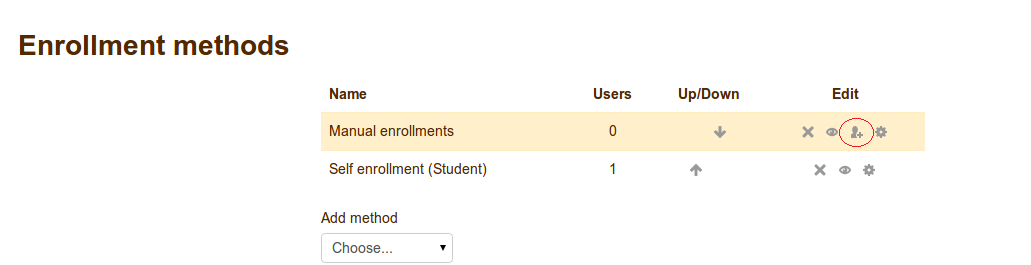
В новом окне Вы увидите два поля. Правое будет утверждать, что не может отобразить всех пользователей и предлагать использовать поиск. Искал пользователей я по принципу:
0. user100
0.1. user10
0.2. user1
1.0. user20
1.1. user2
2.0. user30
2.1. user3
и т.д.
После этого переходим к манипуляциям с LoadStorm. Для начала сгенерируем файл с логинами и паролями:
echo `username,password` >> mdl_load_storm_users.csv
Затем заполним этот файл нужной информацией:
i=0 && while [ $i -le 1000 ]; do echo `user$i,password$i` >> mdl_load_storm_users.csv; let `i = $i + 1`; done
В это же случае можно воспользоваться табличными процессорами, о которых я упоминал ранее.
Далее создаем учетную запись в LoadStorm. Логинимся в нее. Добавляем свой сервер. Верифицируем его. Я не буду приводить скриншоты по каждому из шагов.
В разделе Form Data Sets жмем кнопку Upload data и загружаем файл с названием mdl_load_storm_users.csv и даем ему название в соответствующем поле.
Дальше создаем план теста. В нем создаем сценарий. На странице создания сценария выбираем название загруженного нами файла mdl_load_storm_users.csv из выпадающего меню Form Data set.
Ставим галочки на против Download and execute javascript и Download images. Жмем кнопку Save.
Система должна открыть страницу с вашим сценарием. Внизу будет пустая таблица, в которой со временем будут отображаться созданные Вами шаги теста.
Для создания шага нажмите кнопку Add step. На новой странице выберите свой сервер из выпадающего меню и отметьте опцию Open page, в текстовое поле введите адрес страницы для логина и нажмите Save:
/login/index.php
В результате Вы увидите страницу о том, как LoadStorm видит Ваш сайт:
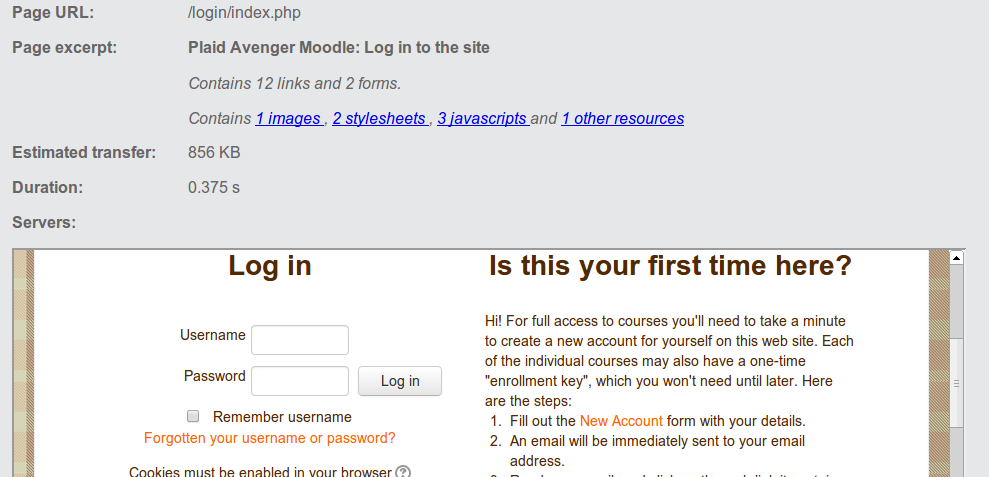
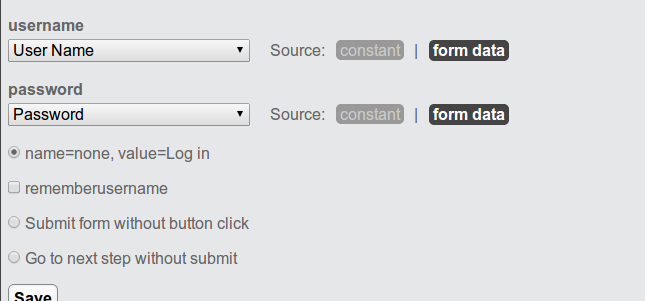
Жмем New step. В новом окне выбираем пункт Submit form и приводим его к следующему виду:
Жмем New step. Выбираем Open page и вводим адрес нужного quiz’а:
/mod/quiz/view.php?id=1
Жмем New step. Выбираем пункт Submit form и приводим его к следующему виду:
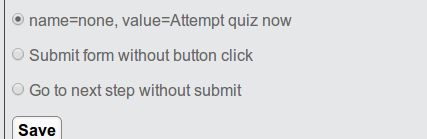
В этот момент на сервере я запустил скрипт, который очищает таблицу с попытками прохождения опросов/quiz’ов, потому что значение для отправки формы меняется после первого прохождения опроса и LoadStorm больше не сможет обработать эту форму. Скрипт выглядит вот так:
while true; do echo `delete from **moodle**.**mdl_**quiz_attempts where quiz = **1**;` |mysql; echo `Flushed`; sleep 5; done
где:
moodle - имя базы данных
mdl_ - префикс таблиц базы данных
1 - idшник нужного quiz’a.
получить список quiz’ов можно вот таким sql запросом:
select * from moodle1.mdl_quiz \mG;
или
select id,name,intro from moodle1.mdl_quiz;
Жмем New step. Получаем форму опросника с кучей полей. Если не получили - выберите пункт Submit form. Пробовал проставить галочки на всех, но по какой-то причине форма отправляется в пустом виде. Можно не заморачиваться и приступать к следующему шагу. Прокручиваем страницу вниз, находим и отмечаем следующий пункт:
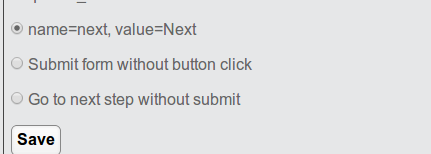
Жмем New step. Выбираем пункт Submit form и приводим его к следующему виду:
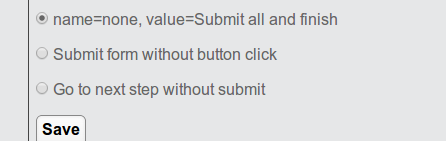
По окончанию жмем Save. Сценарий готов. Можно приступать к тестированию.
На странице сценариев можно нажать кнопку Run steps что бы удостовериться в том, что все шаги работают. Получите вывод:
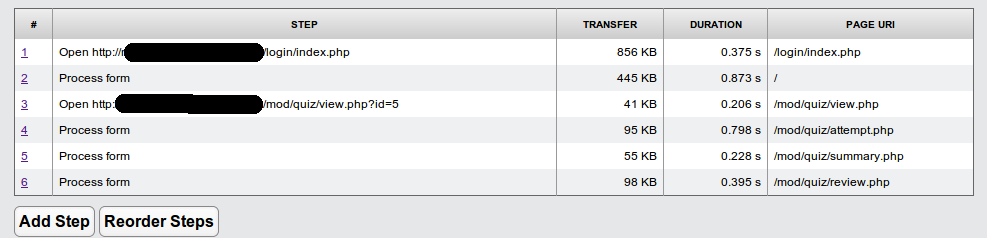
Если что-то не так - убедитесь что на сервере выполняется скрипт для очистки таблицы с попытками прохождения опросов/quiz’ов.
На этом рассмотрение подхода к нагрузочному тестированию Moodle закончено. Как запустить тест - можно легко разобраться, благо дело интерфейс очень дружелюбный.